
 Doc Summary


Overview
This help document explains how to identify potential conflicts and data issues, review related case files, and manage X-Refs (cross-references) in CMPOnline.
The Conflicts and Problems check helps verify that case files contain required information and identifies open or closed files with matching data, such as a Social Security number or date of birth. When related files must remain separate, X-Refs allow you to link them without merging the cases, making their shared information easy to identify and review.
When CMP Online Detects a Conflict
The Conflicts and Problems check runs automatically when you fully open a case file, allowing CMPOnline to immediately identify potential conflicts or missing information. You can also run the check manually at any time by navigating to Case File > Problems.
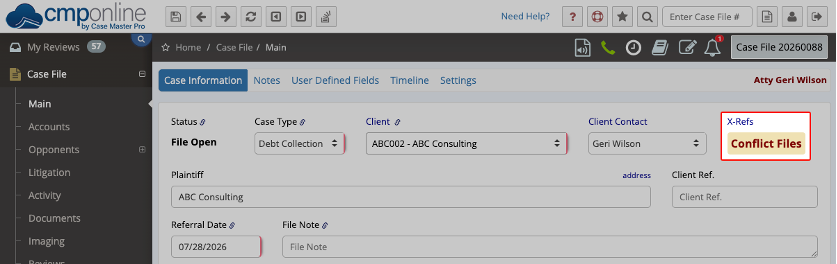
If a potential conflict is found, Conflict Files will appear in the X-Refs section in the upper-right corner of the Case Information screen. Click Conflict Files to review both the Conflict Files grid and the Case File Problems section.
The Conflict Files grid displays the conflict type and details, Opponent name(s), file balance, file number, status, and client code.
Note: To open and review a conflicting file, double-click its row in the grid.
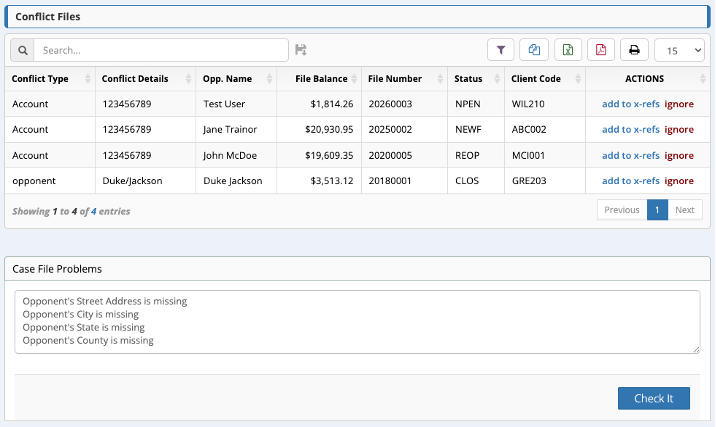
Resolving the Conflict
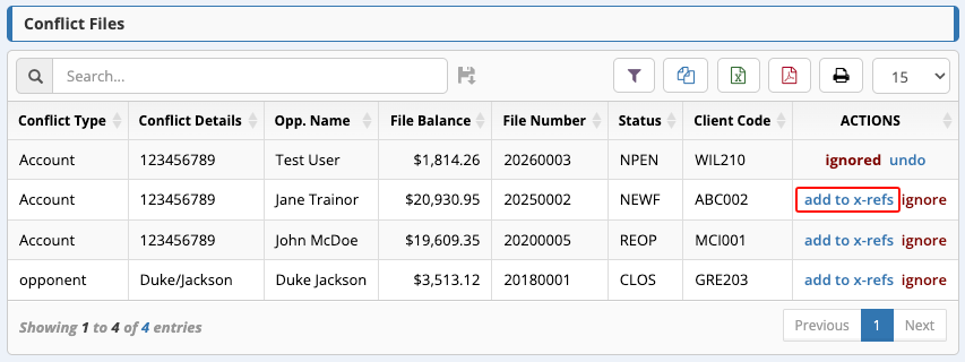
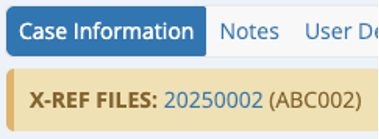
In the Conflict Files grid Actions column on the Case File > Problems screen, you can click “Add to x-refs” to cross-reference the related cases. Adding a file to X-refs now will display a banner (if enabled in Company Settings) across the top of the Case Files linked with the X-Ref information displayed. This allows for easy navigation between cross-referenced files.
Manually Cross-Referencing Files
You can also manually add a conflict between two cases by clicking the “X-Refs” hyperlink on the Case File > Main page.
This action will open a dialog box and allow the user to fill out the File Number(s) that relate with the currently viewed File Number.
After entering all conflicts, click Save.
After adding a Cross Reference Conflict, it will now show on the Problems/Conflicts page in CMP Online under Conflict Files.
Deleting a Manually Added X-Ref
If the conflict no longer exists or it was made in error, after opening the dialog box from the X-Refs hyperlink, click the trash can icon to delete one or all of the File Numbers from the Cross Reference dialog box.
Manually Running a Conflict and Problem Check
You can also manually run a scan to check for potential errors or missing information by simply navigating to Case File > Problems and clicking “Check It”. This manual process will also perform a conflict check against other case files in the system and display the issues in the Conflict Files grid and Case Files Problems.


