Doc Summary


Overview
In CMPOnline, case management relies on a clear hierarchy: Counties contain a primary Clerk of Court, which in turn houses specific Court Locations.
Maintaining an accurate database of these individual court locations is vital. While a county might have one central Clerk of Court office, legal proceedings often take place across multiple physical venues, family law annexes, or specialized district branches.
Setting up these locations accurately ensures that:
- Automated Document Generation: Your sub-addresses, department names, and room numbers pull seamlessly into automated court filings and legal notices.
- Scheduling Accuracy: Calendaring reviews and hearing notices display the precise physical venue, preventing missed appearances.
- Streamlined Workflow: Users can quickly assign the exact courtroom or division to a case without manual data entry.
Adding Court Locations
From the Venue County
- Navigate to Contacts > Counties and edit the appropriate county.
- Click Clerk of Court.
- Scroll down to the Court Locations grid.
- Click Add New or Edit locations accordingly.
From the County’s Clerk of Court
- Navigate to Contacts > Clerks and edit the appropriate county.
- Click Court Locations.
- Click Add New or Edit locations accordingly.
Financials and Merge Fields
Financials
To link default court cost rates to a specific clerk of court, navigate to the clerk’s settings and find the Rates grid. Here you can add specific filing fee brackets and other costs for future automation to drive the financials.
Merge Fields
Additionally, you can also associate specific merge fields per county by navigating to the county’s general settings and clicking on the Merge Fields tab.
Note: These fields are for document merging only and do not control the balance.
Court Location Merge Fields
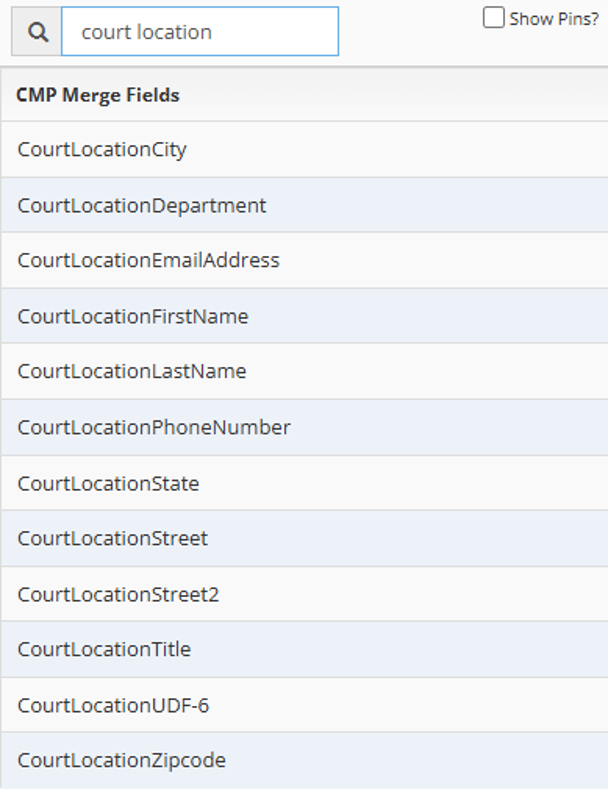
Within your document templates, search for court location in the merge field search box to use any of the available fields shown below.