 Doc Summary


Overview
CMPOnline User Preferences allow you to customize your experience for greater efficiency and ease of use. This area also includes important settings such as personal information and password management. This document explains how to configure these options and highlights recommended settings based on your needs. Changes made on this screen apply only to your user account and will not affect other users in your firm.

Open CMPOnline and navigate to the User Preferences area by clicking the User icon at the top-right of the application.
Personal Information and Time Settings
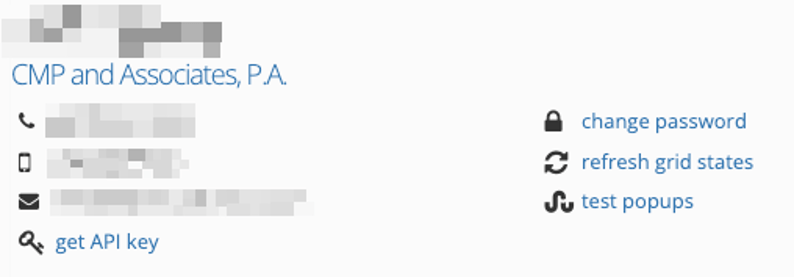
In this section, you can view and update your personal information, reset your password, refresh your grid settings, and test browser pop-ups. You may also set your preferred time zone using the dropdown menu.
Other Settings
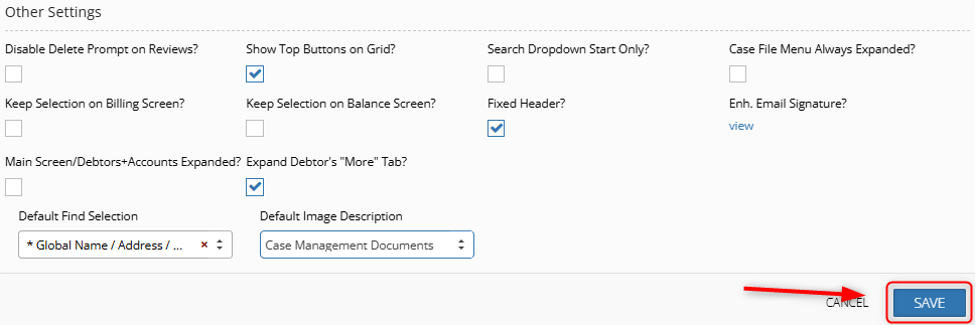
Some of the below options may be available only if enabled by a CMPOnline administrator.
- Disable Delete Prompt on Reviews?
Disables the confirmation message that appears before deleting a review. - Show Top Buttons of Grid?
Displays the Add New, Edit, and Delete shortcut buttons at the top of grids. - Search Dropdown Start Only?
Limits searches to the beginning of field entries rather than matching any word.
Example: If “John Doe” is an option and this setting is disabled, searching “Doe” will return “John Doe.” If enabled, only “John” or “John Doe” will return results. - Case File Menu Always Expanded?
Automatically expands all items in the Case File menu. - Keep Selection on Billing Screen?
Saves the last viewed screen and reopens it when you return to Billing. If disabled, the Unbilled screen opens by default. - Keep Selection on Balance Screen?
Saves the last viewed screen and reopens it when you return to Balance. If disabled, the Overview screen opens by default. - Fixed header?
Keeps the header visible at the top of the screen while scrolling. - Enhanced Email Signature?
Allows you to set a personalized signature when Enhanced Email Automation is enabled. - Main Screen/Debtors+Accounts Expanded?
Automatically expands all debtors and accounts information on the main case file screen. - Expand Debtor’s “More” Tab?
Replaces the “More” dropdown under Case File > Debtors with applicable sub-tabs. - Billing Timer Service Code
When enabled, allows you to select a default service code for billing timers. - Outlook File Format
Sets the default imaging file format when using the Outlook Add-in. - Default Find Selection
Sets your default search option. - Default Image Description
Sets your default image description.