
Case Master Pro
  • Home
  • Software Features
    • Case Management
    • Billing & Accounting
    • CMP Imaging
    • Administration
    • Security
    • Reporting
    • Document Management
    • Software Integration
  • Add-ons
    • Email Automation
    • Integrated Payments
    • Client Dashboard
    • Payment Dashboard
    • Outside Counsel Login
    • EDI Interfaces
    • Direct Check Module
    • Data Conversion
  • Resources
    • Help Documentation
    • Help Videos
    • Support
    • Debt Collection Blog
    • Software Enhancements
  • About Us
    • About Case Master Pro
    • Testimonials
    • Contact Us
  • Free Demo
Select Page

General Case Management

36
  • Abbreviations
  • Adding a Legal Status
  • Adding an Opponent / Debtor
  • Adding and Using Review Codes
  • Adding Hold Codes
  • Adding Multiple Images to an Activity Note
  • Adding New Activity Codes
  • Adding Payment Arrangements
  • Adding Wage and Bank Garnishments
  • Additional Opponent / Debtor Screens
  • Case File Basics
  • Checking for Conflict Files and Problems
  • Counties, Clerks, and Court Locations
  • Creating a New Case File
  • Creating a New Client (Part 1 of 2)
  • Creating a New Client (Part 2 of 2)
  • Daily Dashboard
  • Editing Bad Phone Numbers and Addresses
  • Favorites Feature
  • Field Change History (Audit Log)
  • File Status Codes
  • File Tags
  • Financial Calculator
  • General Navigation Menus and Buttons
  • Image Sharing
  • Imaging (Paperless Office)
  • Importing New Files
  • Litigation Screens
  • Misapplied Debtor Payments
  • Opponent Declares Bankruptcy Procedure
  • Opposing Attorneys
  • Renumbering or Deleting a Case File
  • Returned Mail Feature
  • Status Bar
  • Understanding Settings Hierarchy
  • Workflows

Security

4
  • External Users
  • Resetting Passwords
  • Security Features
  • Two-Factor Authentication

Add-Ons

3
  • Adding an Enhanced Email Signature
  • Enhanced Email Automation
  • Microsoft Outlook Add-On

Document Management

11
  • Adding a Signature
  • Advanced Document Generation
  • Basic Document Generation
  • Batch Documents
  • Building Document Expressions
  • Creating Spreadsheet Templates
  • Document Fragments
  • Document Generation Selection Options
  • Document Letterheads
  • Document User Prompts (Ask Fields)
  • Merging PDF Templates

Accounting

18
  • Accounting Reports
  • Adding Wage and Bank Garnishments
  • Adjusting Commercial Rates and Suit Fees
  • Balance Calculation Basics
  • Contingency Rates and Buckets
  • Entering and Printing Checks
  • Entering Client Invoice Payments and Unpaying Bills
  • Entering Deposits
  • Financial Calculator
  • Generating a Client Remittance Report
  • How to Set Up Hourly Billing
  • Misapplied Debtor Payments
  • Post Direct Payment to Client
  • Preparing and Finalizing Bills
  • Searching for Checks
  • Transactions Check Register
  • Trust Account Reconciliation Procedure
  • Void Checks

Preferences

3
  • Adding Top Buttons to Grids
  • Enabling Pop-Ups
  • Resetting Passwords

Administration

16
  • Abbreviations
  • Adding a Legal Status
  • Adding and Using Review Codes
  • Adding New Activity Codes
  • Assigning Attorney Bar Numbers
  • Automations
  • Batch Internal Status Updates
  • Company Settings: Company Tab
  • Customizing Case Types
  • Image Restore
  • Reassigning Reviews, System Users, and Default Users
  • Renumbering or Deleting a Case File
  • Resetting Passwords
  • Status Bar
  • Terminology
  • User Defined Fields

Tools

4
  • Adding a Legal Status
  • Custom Reporting
  • Importing Batch Images
  • Importing New Files

CMPOnline Support

1
  • SOS Support Line Access Instructions
View Categories

Trust Account Reconciliation Procedure

Overview

This document details the trust account reconciliation procedure in CMPOnline. It provides step-by-step instructions for comparing system records with bank statements, identifying discrepancies, and ensuring proper documentation. Adhering to this process supports regulatory compliance and financial accuracy.
Enter IOLTA Interest

  • Go to CMPOnline accounting administrative file (i.e. file #101). If you’re unsure of your administrative file number, contact CMP support.
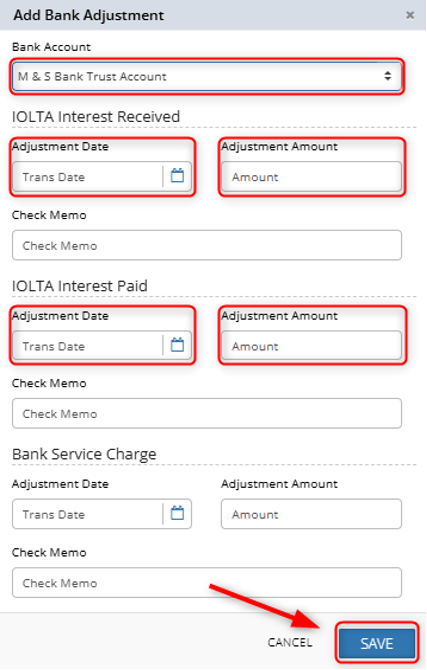
  • Review the bank statement for any IOLTA interest earned or paid, as well as applicable bank service charges, and enter them as needed.
    • Navigate to Case File > Financial > Transactions.
    • Click on the Bank Adjustment button (bottom right).
    • Follow up on any bank charges for reimbursement as needed.

Verify NSF Checks (if any)

  • Navigate to Accounting > Reports.
  • Select NSF Listing from the Acctg Report dropdown, your bank account, and enter your statement dates to preview the report and compare results with the bank statement.
  • If all looks okay, make note of Total NSFs to compare with your reconciliation spreadsheet.

Reconcile Transactions

In CMPOnline, all reconciliation tools are located under the Accounting > Bank Account Recon menu.  Here, you will be able to clear checks and deposits, run your Three Way reconciliation spreadsheet to verify compliance, as well as access any necessary tools needed to ensure accuracy (i.e. fix clear dates, run reports to diagnose reconciliation issues, etc.).

Clear Checks and Deposits

  • Navigate to Accounting > Bank Account Recon > Clear Checks / Clear Deposits, select your trust account, and enter the statement date as your clear date.
  • Compare the list with the bank statement and check the boxes in the cleared column.
    NOTE: Clicking on column headers will help you sort accordingly for easy clearing.
  • When all items on statement are accounted for, compare the Total Check Amount at the top with the bank statement. It should equal Checks/Withdrawals less any NSF’s on the bank statement.
    • If it equals, click “Clear Checks” in the bottom right corner. Then click “OK” to “Clear Checks?” and then hit “Close”. 
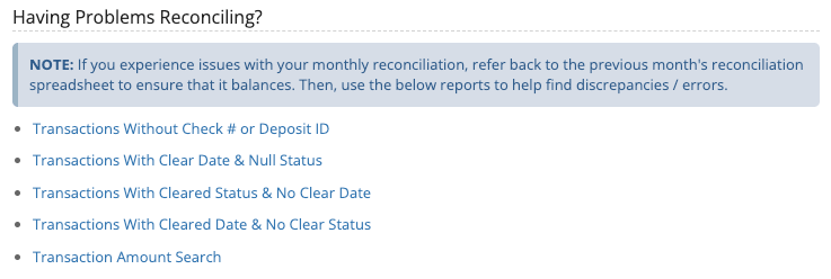
    • If it does not equal, you can run reports to help identify problems. Helpful reports are located under the Recon Spreadsheet screen in the Bank Account Recon menu under the “Having Problems Reconciling?” heading.
NOTE: Make sure you clear IOLTA Interest on both the Checks and Deposit Screens.

Run the Reconciliation Report

  • Navigate to Accounting > Bank Account Recon > Recon Spreadsheet, fill in the appropriate fields, and click Preview Report to save the excel spreadsheet.
  • Open spreadsheet and confirm the following:
    • On the Reconciliation tab, the difference should be ZERO and the Three Way Reconciliation Results should all be TRUE.
    • NSF Checks tab – Verify NSF Checks match statement.
    • Cleared Checks tab – Verify Cleared Checks and Total Debits match statement.
    • Cleared Deposits tab – Verify Cleared Deposits match statement.
  • If any of the above is incorrect, review the entire spreadsheet for possible reasons.
    Note: To diagnose possible reconciliation issues, re-visit the Recon Spreadsheet screen and run the appropriate “Having Problems Reconciling?” reports.
  • If all is correct, save to your file system.
    Note: It is highly recommended to also image your report to your administrative file in CMPOnline.

Share This Help Document:

  • Facebook
  • X
  • LinkedIn
Table of Contents
  • Overview
  • Enter IOLTA Interest
  • Verify NSF Checks (if any)
  • Reconcile Transactions
    • Clear Checks and Deposits
    • NOTE: Make sure you clear IOLTA Interest on both the Checks and Deposit Screens.
  • Run the Reconciliation Report

CMPOnline by Case Master Pro
P.O. Box 252
Georgetown, FL 32139
phone: (386) 675-0177

Contact Us

  • Facebook
  • LinkedIn
  • YouTube
  • Twitter
  • RSS

Software Features

  • Case Management
  • Billing & Accounting
  • CMP Imaging
  • Administration
  • Reporting
  • Document Management
  • Software Integration

Add-on Features

  • Email Automation
  • Payment Processor Integration
  • Client Dashboard
  • Payment Dashboard
  • Outside Counsel Login
  • EDI Interfaces
  • Direct Check Module
  • Data Conversion

Discover the Features Every Law Firm Needs

  • About Our Legal Case Management Software Company
  • Case Management Software
  • Debt Collection Software with Custom Reporting
  • Legal Billing Software
  • Legal Software Administration
Copyright © 2005-2026 Case Master, Inc. All rights reserved.