
 Doc Summary


Overview
This guide explains how to duplicate a custom report created by another user in CMPOnline and save it under your own user account or as a system-wide report. This allows you to reuse or modify existing reports without starting from scratch.
Important: You must be an administrator to access, modify, or reassign other users’ custom reports. Non-administrators can only access and modify their own reports.
Access User Reports
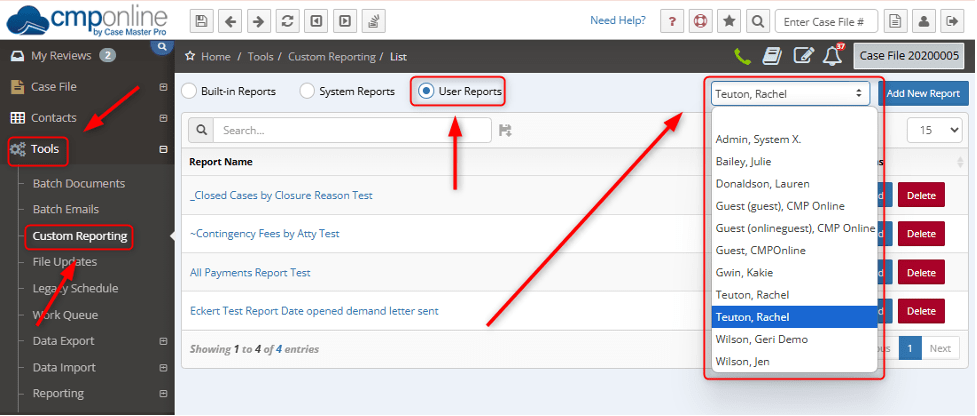
- Navigate to Tools > Custom Reporting.
- Click User Reports.
- From the drop-down menu on the right, select the user who owns the report you wish to duplicate.
- Click the Build button next to the desired report.
Duplicating User Report
- Navigate to Tools > Custom Reporting and select Build (if not already there).
- Click Save.
- Check the New Report? box.
- Under Report Type, select User.
- From the drop-down menu, select your user name.
- Click Save Report, then click OK.
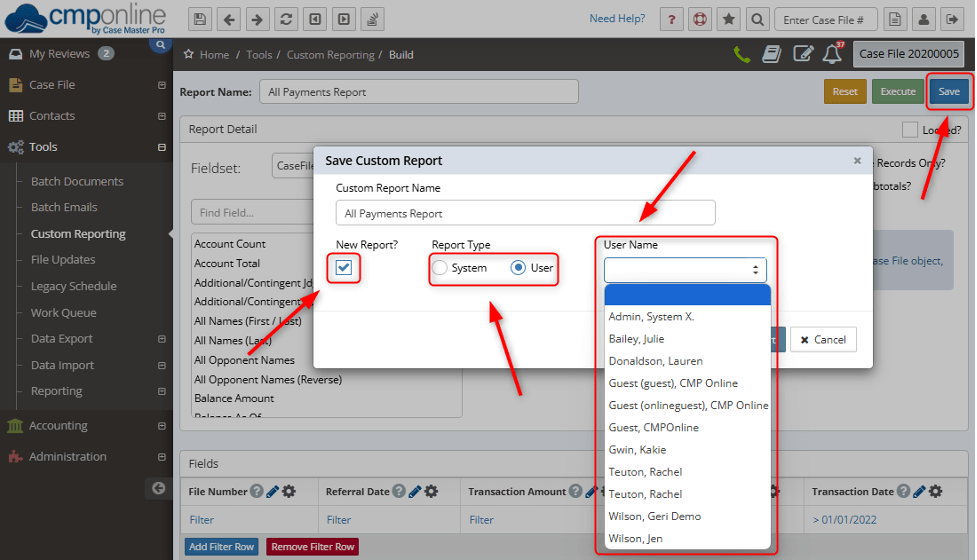
NOTE: Alternatively, you can save a report as a System Report to make it available to all users. If saving as a System Report, you may not want to check the “New Report?” box, as this will create a duplicate.
Accessing Duplicated Custom Report
- Navigate back to Custom Reporting > User Reports.
- Select your user name from the drop-down menu.
- You can now Execute, Build, or Delete the duplicated custom report.


