 Doc Summary


Overview
This process explains how to record and post a debtor’s direct payment in CMPOnline. While similar to standard office payments, it includes key differences to ensure correct deposits, proper remittance generation, and automated billing of applicable fees.
Entering Direct Payment Details
- Navigate to Accounting > Deposits > Enter Deposits
- Change the “Deposit Date” to the date the client received payment
- Select “Direct to Client” from the “Deposit Type” dropdown
Note: Your deposit types may be different. If “Direct to Client” is not an available option, you can add a new one by navigating to Administration > Lookups > Financial > Deposit Types or select appropriate type from the existing list. - From the “Default Bank” dropdown, select one of the following:
- “Direct Payment to Client” if you will need to bill for your fees
- “Direct – Auto Enter Remit Date” if you have already received your fees

- Fill in the following fields:
- File Number
- Ref. / Check Number (optional)
- Effective Date (if different than the Deposit Date)
- Amount
- Method
- Type = “DP – Debtor Payment”
- Code = “NM – Normal”
- Opponent / Debtor
- CF Account (optional)
- Bank Account will be one of the “Default Banks” entered above. No need to change this.
- Check Memo (optional)
- Press Enter to add your pending deposit to the grid below

Printing and Finalizing Deposit
- To Image the deposit:
- Click the gray “Print” button to image your deposit into CMPOnline:
- Select the Adobe Acrobat icon in the top right corner
- Enter the file number (i.e. corresponding file number or the administrative file number)
- Select a description and enter the date
- The Image note is optional, but recommended
- Click Save
- Click the gray “Print” button to image your deposit into CMPOnline:
Note: For more information on Imaging, visit our Imaging help document.
You can also print or download the deposit report.
- Close browser tab once you’re done imaging and/or printing the deposit list
- To post the deposit to the file:
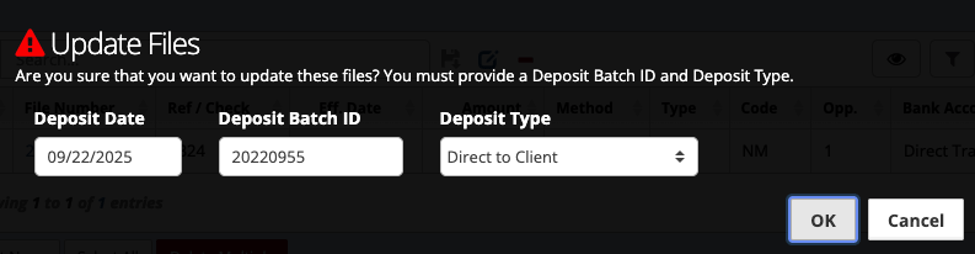
- Click the “Update” button
- Verify all information is correct and click OK
Note: The system assigns Deposit Batch IDs sequentially.