
 Doc Summary


Overview
This document provides an overview of the process for entering deposits into CMPOnline. It covers the fundamentals of posting debtor payments, client funds, and attorney’s fees. For advanced training or additional assistance, please contact our Support team.
Important Note: Your firm’s financial preferences should be configured during the initial accounting training session as part of onboarding and prior to processing any deposits.
Understanding Deposits
When processing deposits, you have the ability to enter all your deposits on one screen. For example, if you have one check from a debtor and another check from a client, both are able to be processed in a single deposit as instructed below. In addition, if you have a single check from a client and the funds will need to be split between client funds and attorneys fees, that too can be done on the same deposit screen.
First, let’s navigate to Accounting > Deposits > Enter Deposits.

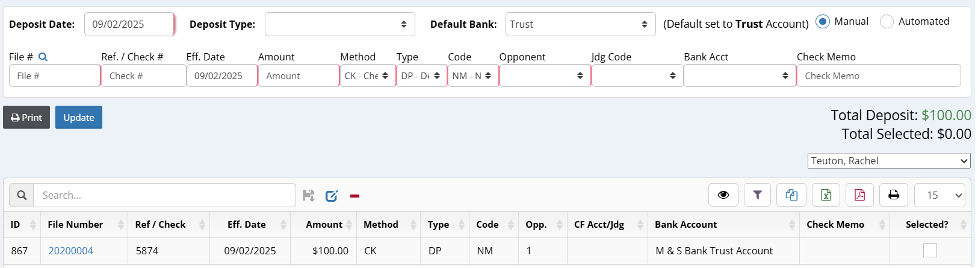
The screen is separated into two sections: a data entry area (the top section) and a grid showing the data we’ve already keyed (the bottom section). You can see the total deposit amount in the middle.
A few quick notes: Using the tab key is a quick way to navigate the fields at the top, pressing enter will move your entry to the bottom list, and required fields have a red shade to the right of the fields. The Deposit Date will be the date you are making the deposit at your bank and Deposit Type will assist in your Trust account reconciliation each month.
Deposit Entry
In the box at the top of the screen, enter information into the following fields:
Note: if the transaction needs split, see Split Debtor Payment, Fees, or Client Funds notes below.
- File Number (notice a window pops up to verify we typed the file number correctly)
Note: If you don’t know the specific file number, use the eyeglass icon to search for the appropriate file. - Ref. / Check # (optional)
- Effective Date (date you received payment could be different from deposit date)
- Amount
- Method
- Type / Code
- For debtor payments, this is typically DP / NM (Debtor Payment / Normal)
- For client funds, this is typically CF / CL (Client Funds / From Client)
- For fees, this is typically AF (Attorney Fees) along with the appropriate code
Note: It is recommended to first enter your debtor payments, then enter your client funds, then fees, so that you do not have to change this setting in between every entry.
- Opponent (if a debtor payment, make sure you choose the correct debtor correlated to the payment)
- CF Account (optional)
- In a multi-count case, you can apply the payment to a specific account vs. having the system split the payment across all of the accounts.
- In a situation where there are multiple judgments on a case file, this field changes to “Jdg Code” where you can select the appropriate judgment.
- Bank Account (will already be populated using the client’s default bank account)
- Check Memo (optional)
- Click “Enter” on your keyboard for the transaction to enter your deposit grid below.
At this point, your first deposit entry is now keyed into the below list. You can then move onto entering another deposit following the above steps.
Split Debtor Payment, Fees, or Client Funds
There are many situations where a check needs to be applied to multiple files or needs to be split between payments, fees, or client funds.
- Example #1: A single check is received from a debtor or garnishee with two or more files (i.e. a check of $250.00, file 1001 will receive a payment of $50.00 while file 1002 will receive a payment of $200.00).
- Follow the DEPOSIT ENTRY steps above, entering the appropriate file numbers in the File Number field one line at a time.
- When you get to the Amount field, only enter the amount delegated to each individual file.
- Once finished with entering your memo and any other details, press enter and create a new line with the next file number and payment amount.
- When complete, you should have two DP/NM entries, one for $50 going to file 1001 and another for $200 going to file 1002.
- Example #2: A single check is received from a client with both client funds and attorneys fees (i.e. a check of $436.00, file 1001 will receive client funds of $186.00 while file 1001 will also receive attorneys fees of $250.00).
- Follow the DEPOSIT ENTRY steps above, entering the appropriate file number the client funds are for.
- When you get to the Amount field, only enter the amount for the client funds first and then enter “CF – Client Funds” in the Type field. The Code field can either be “CL – From Client”, “VD – From Vendor”, or “MS – Miscellaneous”, depending on the funds received.
- Once finished with entering your memo and any other details, press enter and create a new line with the next portion of your client check, this time entering “AF – Attorneys Fees” in the Type field. Most of the time you will use “MS – Miscellaneous” as your Code, but this will vary firm to firm.
- When complete, you should have two entries, one CF and one AF, both equaling your payment from the client.
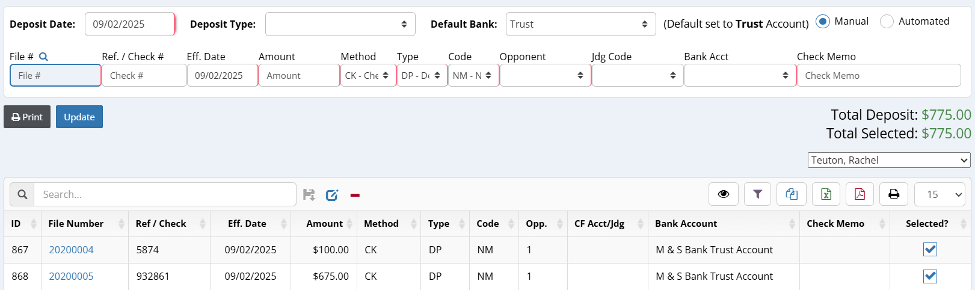
- Once you have finished entering all the separate entries for your deposit, you will want to “Print” your deposit report. When you select “Print”, a new window will pop up where you can image your deposit report to your administrative file. Now you are ready to update your deposit.
- Step-by-step recap:
- Select All
- Image deposit report to administrative file
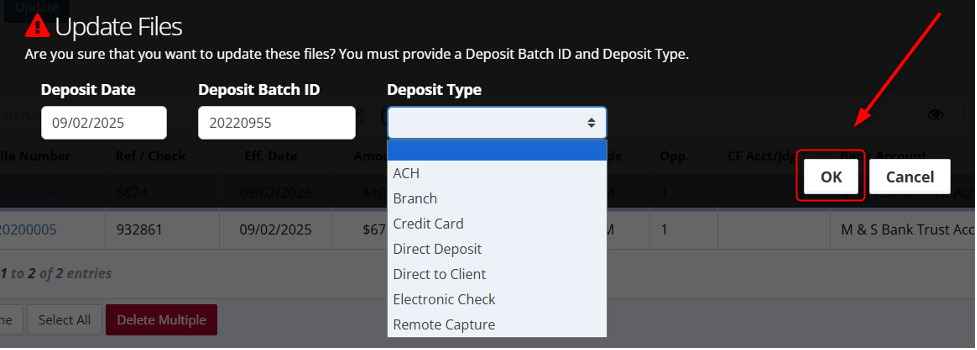
- Update
- CMP will choose a deposit batch ID for you sequentially, or you can input one yourself (we recommend allowing CMP to generate this for you)
- The Deposit Type will assist in your trust account reconciliation each month
- Step-by-step recap:
Additional Available Features and Deposit Settings
Here are a few additional features and settings available for deposits. Please contact a CMP support specialist for more information.
- Deposit Screen Features:
- Direct Payment to Client Deposit
- Auto Enter Remit Date During Post
- Deposit Screen Settings: Administration > Setup > Company > Accounting Tab
- Ability to enter net or gross Outside Counsel payments
- Ability to allow deposits for certain transaction codes (setup in Administration)
- Ability to auto post a bill payment to the deposit screen
- Ability to auto add fee check on deposit
- Ability to auto enter refund checks
- Ability to auto add fee adjustment on deposit
- Set default deposit type
- Set default payment form


