
 Doc Summary


Overview
Case Types in CMPOnline allow you to configure Case File screens to best fit your firm’s needs. By editing Case Types, you can adjust menu terminology, set file requirements, define default users, and control which screens and features are available for specific types of cases. Customizing Case Types helps ensure accurate balance calculations, enforces required data entry, and streamlines your workflow by tailoring the system to how your firm operates.
Understanding Case Types
Case Types determine how a Case File is structured and displayed. Each Case Type can have its own terminology, screens, validation rules, and financial settings. Case Types are selected from the Main Case File Screen when working in a case.
Adding or Customizing Case Types
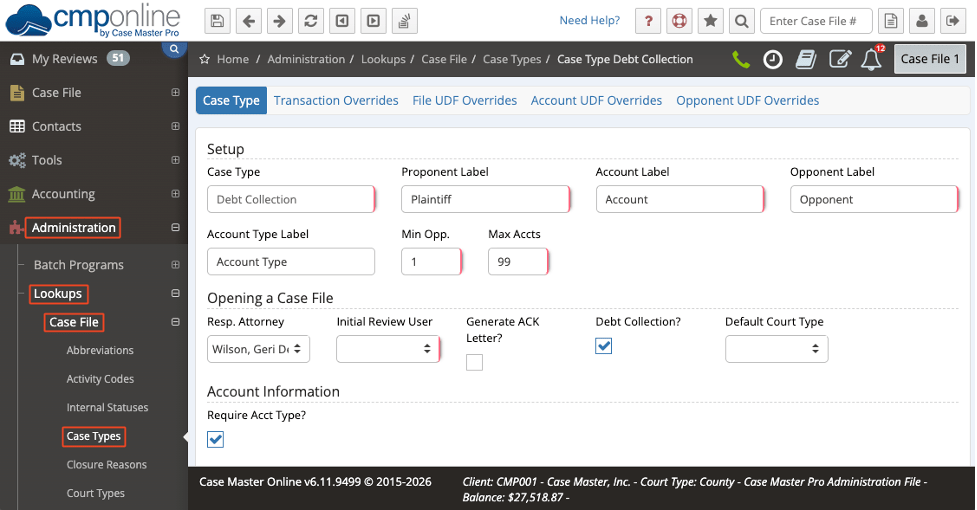
Navigate to Administration > Lookups > Case File > Case Types. Select the Case Type you want to edit, or click Add New in the bottom-right corner. From here, you can customize the Case Type settings as needed.
Setup
This section contains the basic information and terminology for the Case Type, including the Case Type name, Proponent Label, Account Label, and related fields. At least one minimum opponent is required. If zero is entered in the Max Accts field, the entire Accounts screen will be hidden for this Case Type.
Note: A detailed description of each field is available by hovering over the field.
Opening a Case File
This section includes options related to opening a case file using this Case Type. You can assign an automatic responsible attorney and designate an initial review user. Both settings can be modified later if needed.
You may also choose to automatically generate an acknowledgment letter when the file is opened, if configured in the client’s settings.
Additionally, it is important to indicate whether debt will be collected on this Case Type, as this directly impacts account and balance calculations.
Account Information
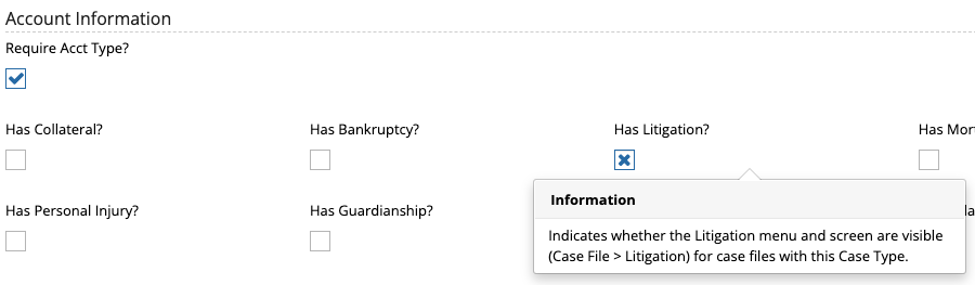
This section allows you to select which additional account screens should be available, such as bankruptcy, litigation, mortgages, and more. You can also enable specific fields on the Accounts screen, such as Has Collateral?, by selecting the appropriate options.
You can also choose whether this Case Type displays the Financials menu or the Balance screen.
Contact Information
Here, you can configure opponent-related settings, including selecting an optional default opponent type.
This section also includes options for enabling or disabling opponent-specific screens, such as bankruptcy, litigation, and others.
Case File Validation
This section controls validation requirements that determine which fields must be completed before continuing with a file. For example, you can require a case number on the litigation screen.
This is also where the statute of limitations, entered in years, is configured for the Case Type.
Additional Options (Other)
At the bottom of the screen, you’ll find additional options, such as allowing remits or garnishments. Once all settings are configured, click Save.
Viewing Changes on the Case File
After saving, return to the Main Case File screen, change the Case Type, save, and refresh the file. The updated terminology and screen options associated with the new Case Type will now be reflected throughout the case.


