
Featured Enhancements
Imaging Enhancements: Preview & Download
Improved the Imaging screen with a new side-panel preview for PDFs, DOCX files, and other supported image types, allowing users to view files without opening a separate tab. A new Download icon also provides quick access to download PDF files, both located under Case File > Imaging.
Added logic to the CMP Find tool to display the row in a red hue if the file is closed.
We’ve integrated with PaymentVision! Enjoy another great option for credit card and ACH payments.
Click here to see how it streamlines your workflow.
Case File
- Main:
- A scrollbar is now available on the Propensity to Pay popup dialog for situations where it extends beyond the standard screen height.
- Activity:
- “Note Display” option was added to the “View Options” menu on the Activity screen to limit the number of lines of text shown in the “Note” column.
- Imaging:
- Updated logic to Imaging’s “save image” processing to use the currently loaded Case File for Company Automations (so that changes are visible immediately, instead of after a case file refresh).
- Improved error messaging when combining multiple images into a single PDF, making it easier to identify when a corrupted PDF file prevents the process from completing successfully.
- CSS logic enhanced in CMP to help with grid flashing in rare cases when CMP attempts to wrap grid text and add a page scrollbar simultaneously.
Tools
- Custom Reporting:
- New option for CMP Super Users (and all users of firms where the Custom Reporting record count limitation is lifted) provided to override the 10,000 record limitation on Custom Reports.
- “Resp. Attorney Full Name” has been added as a custom reporting field to the “CaseFile” fieldset.
- Added new custom reporting fields for “PA Last Payment Effective Date”, “PA Last Payment Transaction Date”, “PA Last Payment Amount”, and “PA Last Payment Transaction Code” to the “Opponent / Debtor” fieldset in Custom Reporting (to include if the “Apply Any Payment Towards Payment Arrangement” option is checked).
Accounting
- Billing > Enter Bills:
- The Enable Multi Select option is now available on the Accounting > Billing > Enter Bills screen, allowing users to mass delete billing entries.
- Deposits > Import:
- Enhanced Deposit Import to support any transaction type/code combination with the “Allow Deposits?” option enabled, rather than relying on a predefined list.
- Remittance:
- New Company Setting (must be enabled by a CMP administrator) provided so that new clients to CMP are automatically added to a user-defined Remittance filter.
Administration
- Lookups > Financial > Trans Types / Codes:
- Added “Trustee” as a Payee Type option in the Transaction Types / Codes configuration, with support for checks generated through Document Packages and Company Automations.
- Setup > Company > Advanced tab:
- New ability to set default “Communication Consent” values when a new phone number or email address is populated on the Opponent / Debtor screen.
- Setup > Company > Automations tab:
- “Update Review” Automation Action is now available which provides the user the ability to update an existing review on a Case File if it exists.
- Added the “Match on Opponent Id?” option to Company Automations when updating or deleting a Review providing greater control over which reviews are updated or deleted.
- A new “Limiting Script” configuration is now available to support more advanced Limiting Factors within Company Automations. Contact a CMP administrator for additional details.
- Ability to trigger Company Automations when Closing a Case File added, along with options to trigger it based on specific closure reasons used during this process, which runs even when the file moves to Closed Pending status.
- Enhanced logic to recalculate the case file balance when any transaction is added to CMP via automations.
- Added an “* Any Transaction *” option to the Add Transaction trigger in Company Automations (to include all transaction type / code combinations).
- Created the ability to send automated emails via Company Automations and Nightly Automations to Opponents / Debtors, as well as specify the “Send As User” and “send test email” (must have the Enhanced Email Automation feature enabled).
General
- Advanced log tracking implemented for ClearACH payments when the payment status is passed back to CMPOnline via overnight settlement.
- Created logic to prevent error messages from being reported when an Activity Type, Hold Type, or Review Code is used in a Company Automation, but subsequently removed from CMP.
- Option added to change the “As Of Date” for the “Cases by Branch” reporting on the CMP Dashboard.
- Logic to the “Duplicate Client” routine updated to include Contact-level UDF fields as part of the “duplicate” process.
- “Delete” option added to the CheckController API for deleting unprinted checks in the checks to print queue.
- Created a PaymentVision CIF (single file) API end point.
- Logic to CMPFind enhanced to speed up internal load time of this window.
- Extended the number of batch log entries retained for PaymentVision automated processes.
- Added User Preference option to “Disable DataTable Wrap when Printing” for users who prefer the non-wrapped version of printed grids.
Did You Know?
CMPOnline has all kinds of hidden secrets!
Did you know you can easily sync CMPOnline Reviews with your calendar to keep all your scheduled reviews organized in one convenient place? Enable the Allow Send to Outlook? option when editing a review code under Administration > Lookups > Case File > Reviews. When you add the review to a case file, check Send to Outlook, adjust the start and end times, and save to sync your event with your Outlook, GMail, Apple iCal, or Thunderbird calendar!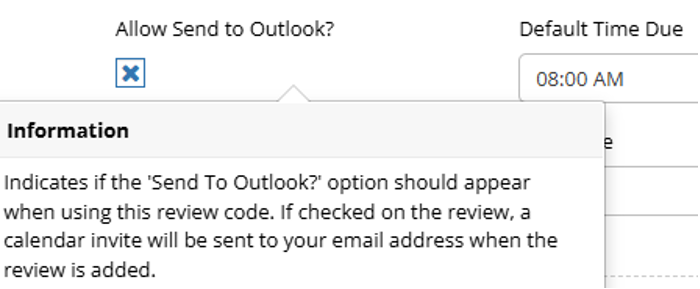
As always, if you have questions, CMP Support is happy to help!
Stay tuned for future tips about CMPOnline!