
Featured Enhancements
Added logic to report when another user is accessing the same case file as you,
reported in the header bar with a “lightning bolt” icon.
New ability to add a Review to a Case File when a posted payment from the Deposit screen brings the Case File Balance to $0.00, under the Administration > Setup > Company > Accounting tab.
Interested in taking credit card and ACH payments? Contact us for more information.
Case File
- Main:
- Added logic to display “Conflicts/Problems” instead of just “Problems” when there are both Conflict Files and Problems on a case file.
- New logic to default the “Authorized to Charge Less than Recurring Amount to Pay Off Balance?” checkbox to TRUE on PaymentVision recurring arrangements set up in CMP, which can still be overridden by the end-user, under Case File > Main > Take Payment.
- Added the “Expected Recovery Percent”, “Min / Max Days to Next Recovery”, and “Recovery Effort Level” to the OpenAI fields model and associated front-end screens.
- Personal Injury (if set up in CMP as a custom case type):
- Added a “PIP SOL Date” field to the Personal Injury screen, under Case File > Personal Injury.
- Opponents:
- New “Field Updates” API call to update specific case file / opponent / account fields, for firms that have APIs enabled.
- Adjusted the placement of the “Returned Mail” indicator to appear directly below the opponent’s mailing address, if enabled in Company settings, under the Case File > Opponents / Debtors > Contact Card tab.
- Added a new “Other” Garnishment type, which is based on garnishing a Miscellaneous Contact, under the Case File > Opponents / Debtors > Garnishments tab.
- Litigation:
- New “calc” option for the Judgment Interest field on the Litigation screen for calculating simple interest for a particular date range, useful for courts that do not provide the awarded judgment interest amount and instead provide the start date and interest rate only, (must be enabled by a CMP administrator).
- Documents:
- Added logic to speed up the Document Editor “view” screen’s load time when generating a document.
- Added logic to speed up the Document Editor “view” screen’s load time when generating a document.
- Reviews:
- New logic to prevent the re-sorting or reloading of the Reviews grid after adding, editing, or deleting a Review entry.
- Financial:
- Added field to track the user name of the person who marked an invoice as “Paid” going forward, for newly paid invoices, under Accounting > Billing > Paid Bills and Case File > Financial > Billing > Paid.
- New logic to the Add Check process to pull from the Bank Garnishment or Wage Garnishment “defaults” if no bank / employer appears in the Opponent / Defendant’s Financials grid, under Case File > Financial > Checks.
Tools
- Added the ability to select the “Default User” instead of having it always default to the current user when viewing File Updates, under Tools > File Updates.
- New ability to have CMP send high-level case file data to OpenAI each night for the purpose of building collectability scores, which include the score, a suggested next action, and a reasoning for the score, with the ability to see a grid view of results, (must be enabled by a CMP administrator) under Tools > AI Collectability View.
- Added the Client Contact’s ID number to the “CaseFile” fieldset in Custom Reporting, under Tools > Custom Reporting.
- New “Garnishment Request Date” and “Garnishment Request User” fields to the “Debtor Garnishments” fieldset in Custom Reporting, under Tools > Custom Reporting.
- Added all OpenAI derived fields to the “AI Collectability” fieldset in Custom Reporting, under Tools > Custom Reporting.
Accounting
- New logic to support creating a Quickbooks download file for firm bank accounts of type “Credit Card”, under Accounting > Checks > Print Checks.
Administration
- Added a “Variable Static” option with Variable Interest Methods, so that CMP pulls the interest rate from the Interest Method’s rate schedule based on the “starting interest date” for the account / judgment, and it remains the same for the life of the account / judgment, unless explicitly changed via Interest Rate Adjustments, under Administration > Lookups > Financial > Interest Methods.
- Batch Programs:
- Updated the capabilities of the Batch Notes import to support supplying the Note Date, Comment, and Note Text, all fields optional, as part of the spreadsheet of notes to import into CMP, under Administration > Batch Programs > Batch Notes.
- Setup:
- Added hover-over messaging / information for the “Show Collections Only on Main Screen?” and “Show Consumer Debt on Main Screen?” options, under the Administration > Setup > Company > Advanced tab.
- Company > Automations Tab:
- Added the ability to update the “Misc Dropdown” field as part of Company Automations.
- New ability to trigger Company Automations based on a Transaction’s Payment Form in addition to the Type / Code.
- Administration > Setup > Document Templates:
- Merge fields:
- Added several “Witness*” merge fields for merging default Witness / Expert information for Subrogation case types.
- Added several “Witness*” merge fields for merging default Witness / Expert information for Subrogation case types.
- Merge fields:
General
- Added the Client’s Agent details to the matching algorithm in CMPFind’s “global” search results.
- New “Case File Redirect” API call to redirect a specific user to a different case file, for firms that have APIs enabled.
- Added logic to auto-update the Email Subject Line’s “Balance” field, if included, whenever case file’s balance changes, due to transactions added or changes to the file that affect the balance for firms with the Enhanced Email Automation enabled.
- New logic to the PaymentVision CIF export to optionally allow Clients to login and make payments on invoices through the PayWeb360 portal (must be enabled by a CMP administrator).
Did You Know?
CMPOnline has all kinds of hidden secrets!
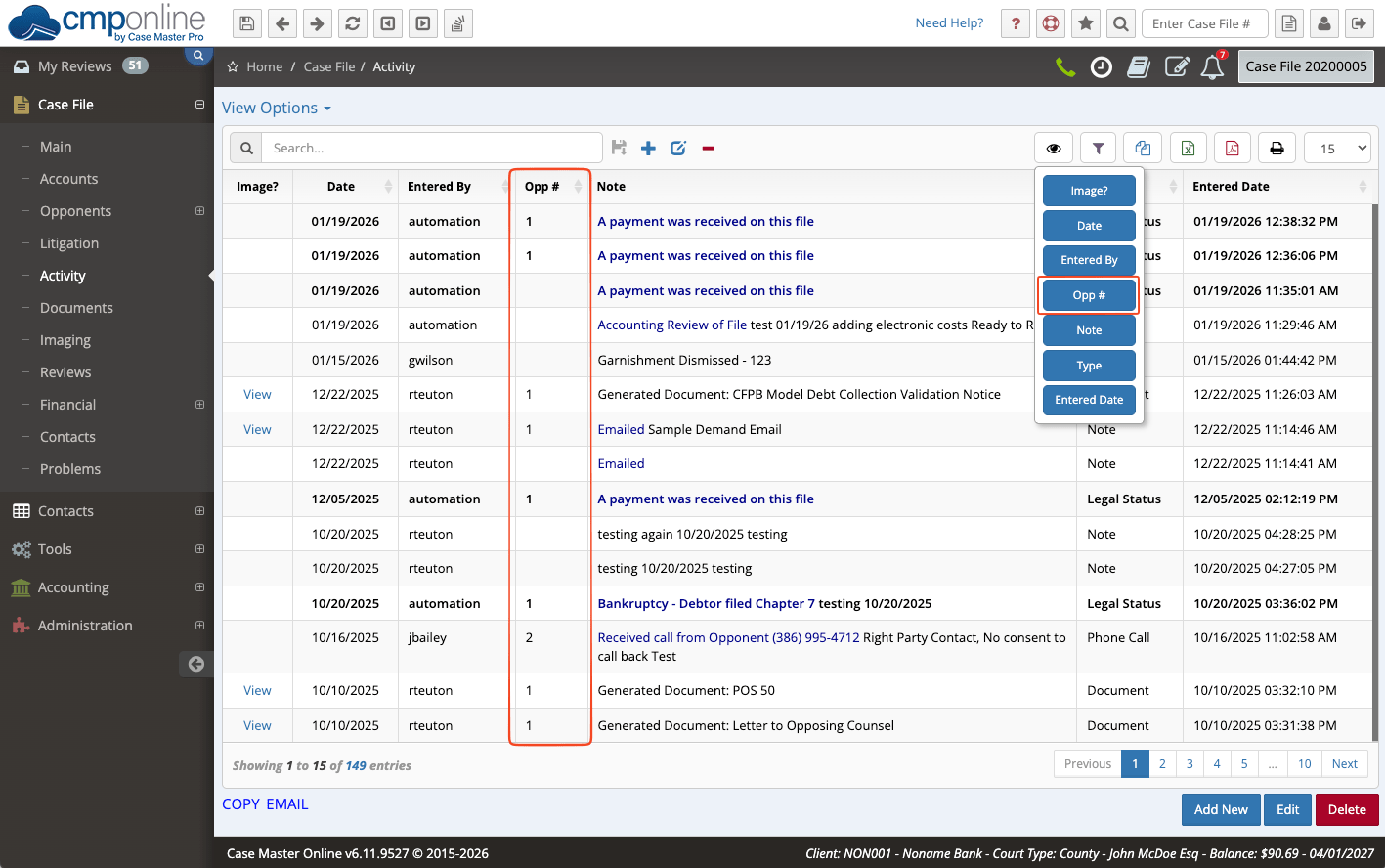
Most grids include an “eyeball” icon that allows you to customize which columns are visible in your view. These changes apply only to your account and do not affect other users, giving you the flexibility to personalize how your information is displayed. You can try this feature under Case File > Activity, and as always, please contact CMP Support if you have any questions.
Stay tuned for future tips about CMPOnline!